
1. Introduction
South African taxpayers can now access a growing number of SARS tax services through WhatsApp, making it possible to handle certain tax queries without immediately visiting a SARS branch or logging into eFiling.
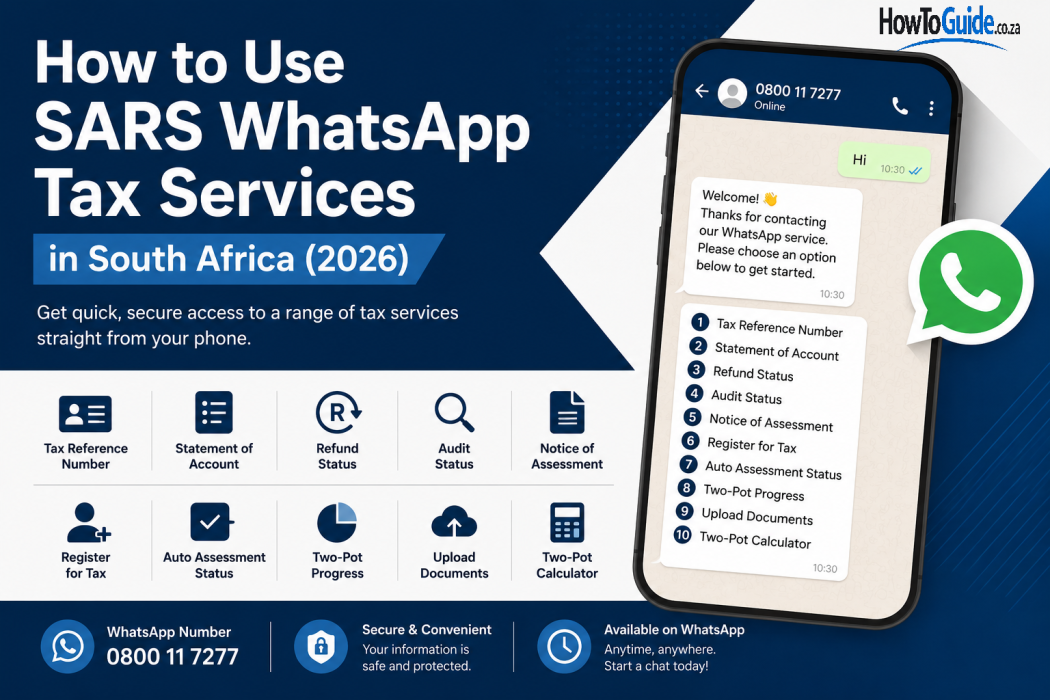
The service has expanded considerably since SARS first introduced its self-service WhatsApp channel. In 2026, taxpayers can use the SARS WhatsApp service for several Personal Income Tax-related services, including checking a tax reference number, requesting a Statement of Account, checking a refund or audit status, obtaining a Notice of Assessment, registering for Personal Income Tax, checking Auto Assessment status, checking the progress of a Two-Pot tax directive application, uploading supporting documents and using the Two-Pot tax calculator.
SARS currently lists 0800 11 7277 as its WhatsApp number.
The process is relatively straightforward: save the SARS number, send a greeting such as “Hi”, accept the terms and conditions when prompted, choose the relevant service and complete the required identity verification.
This guide explains how to use SARS WhatsApp step by step, what you need before starting, which services are available and what to do if the service does not work.
2. Who This Guide Is For
This guide is useful for South Africans and other taxpayers who want to use SARS WhatsApp for routine tax-related services.
It can help you if you want to:
- Find your SARS tax reference number.
- Check your SARS refund status.
- Check your audit status.
- Request your Notice of Assessment (ITA34).
- Request your Statement of Account.
- Register for Personal Income Tax.
- Check your Auto Assessment status.
- Check the progress of a Two-Pot tax directive application.
- Upload supporting documents to SARS.
- Use the SARS Two-Pot tax calculator.
- Ask SARS a general tax question.
SARS states that the WhatsApp platform can be used for general tax questions by anyone, while access to the Personal Income Tax services requires the appropriate taxpayer registration and verification.
3. Requirements
Before you start using SARS WhatsApp, make sure you have the following.
3.1 A smartphone with WhatsApp
You need WhatsApp installed on your phone and an active internet or mobile data connection.
3.2 The official SARS WhatsApp number
Save the official SARS WhatsApp number:
0800 11 7277
Be careful when searching for SARS on WhatsApp. Scammers may create fake accounts or pretend to be SARS.
3.3 Your registered cellphone number
For Personal Income Tax services, the cellphone number you use on WhatsApp must match the contact number registered on your SARS profile.
If your cellphone number is outdated, you may need to update your SARS registration details before the service can authenticate you.
3.4 Your identification details
Depending on the service you select, SARS may request information such as:
- South African ID number;
- Passport number;
- Tax reference number; or
- Other information required for authentication.
3.5 A valid email address
Some SARS documents are also sent to the email address registered on your SARS profile. SARS specifically notes that a valid email address is required for certain WhatsApp document requests.
4. Step-by-Step Guide: How to Use SARS WhatsApp
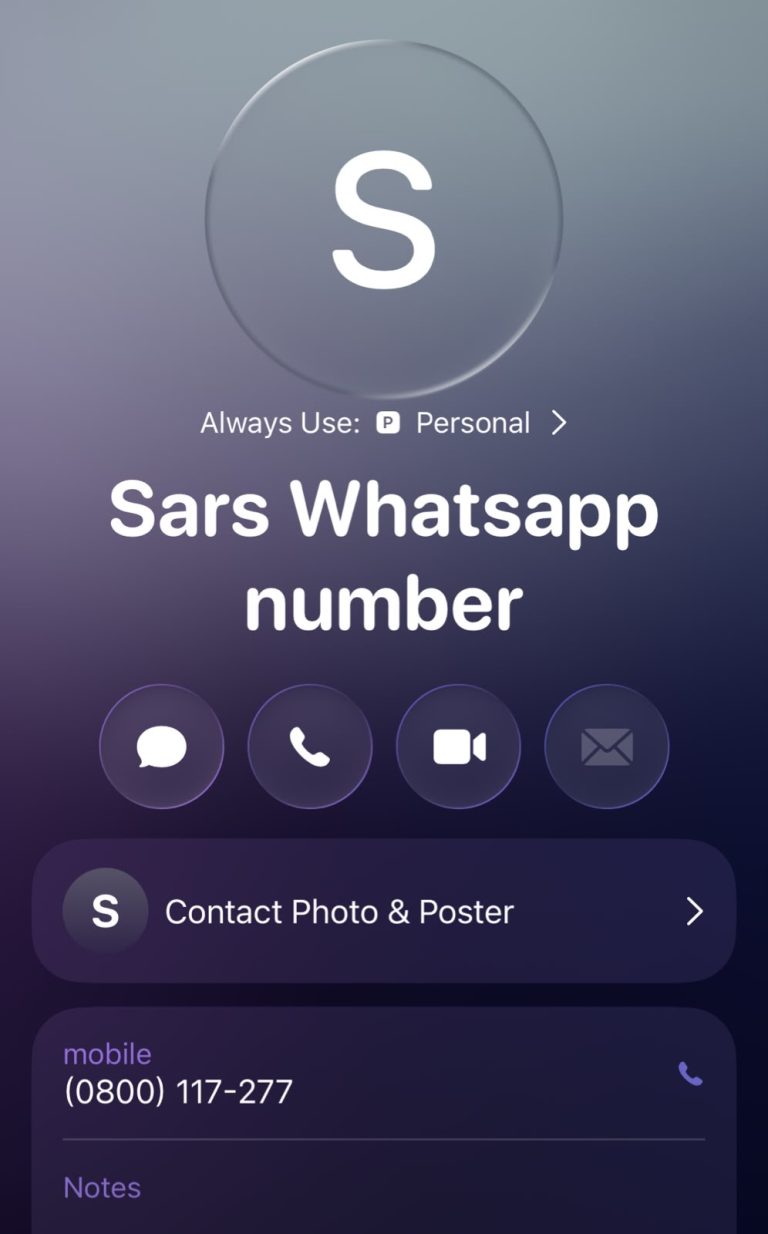
Step 1: Save the SARS WhatsApp number
Open your phone’s contacts and save:
SARS WhatsApp: 0800 11 7277
You can save it under a name such as SARS WhatsApp.
Step 2: Open WhatsApp
Open WhatsApp and find the SARS contact you have just saved.
Make sure you are communicating with the correct official SARS number.
Step 3: Send “Hi”
Send a simple greeting such as:
Hi
or
Hello
SARS will respond with information about the service and provide you with a menu of available options.
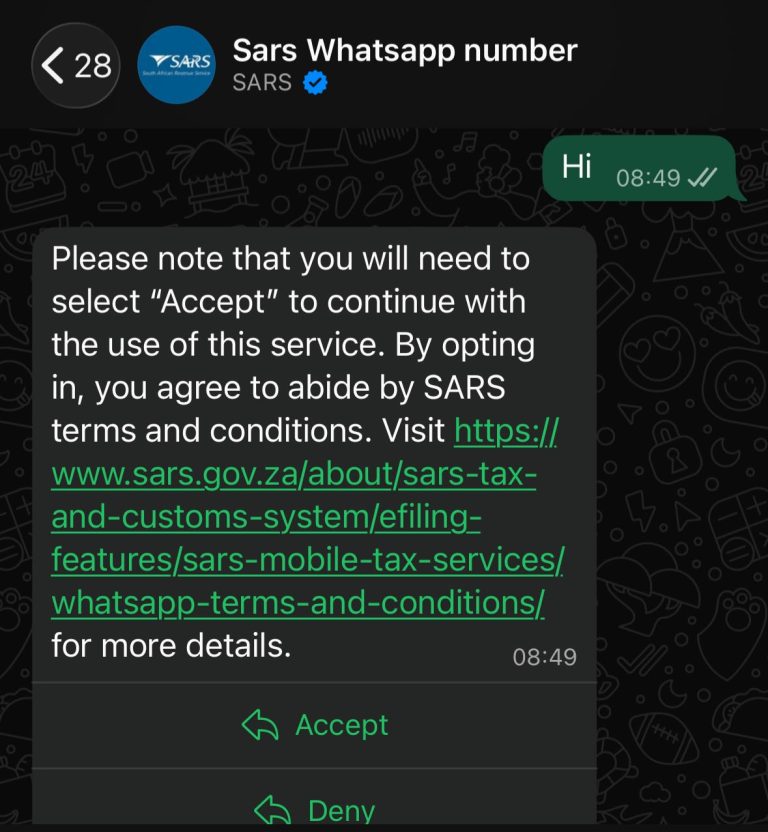
Step 4: Accept the terms and conditions
If this is your first time using SARS WhatsApp, you will receive the SARS WhatsApp terms and conditions.
Read the information and select Accept if you agree.
You cannot continue using the WhatsApp service without accepting the applicable terms and conditions. SARS notes that users may be asked to review and accept the terms again after they expire.
Step 5: Select your tax service
Once you have accepted the terms, SARS will display the available service menu.
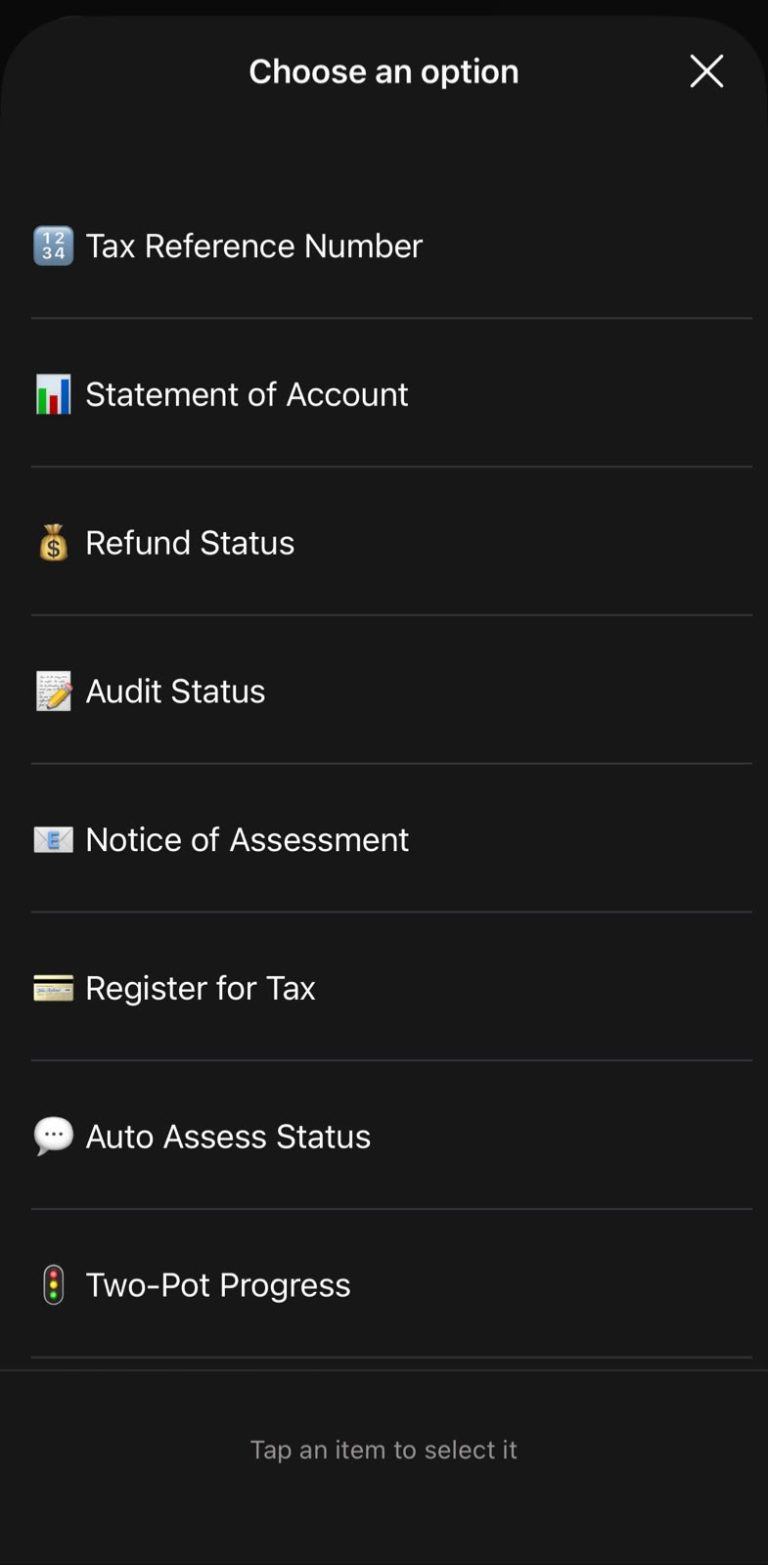
Depending on the current menu, you may see options such as:
- Tax Reference Number
- Statement of Account
- Refund Status
- Audit Status
- Notice of Assessment
- Register for Tax
- Auto Assessment Status
- Two-Pot Progress
- Upload Documents
- Two-Pot Calculator
SARS has expanded the WhatsApp service over time, with Auto Assessment Status added in July 2026.
How to Get Your SARS Tax Number on WhatsApp
If you have forgotten your SARS tax number, you can request it through WhatsApp.
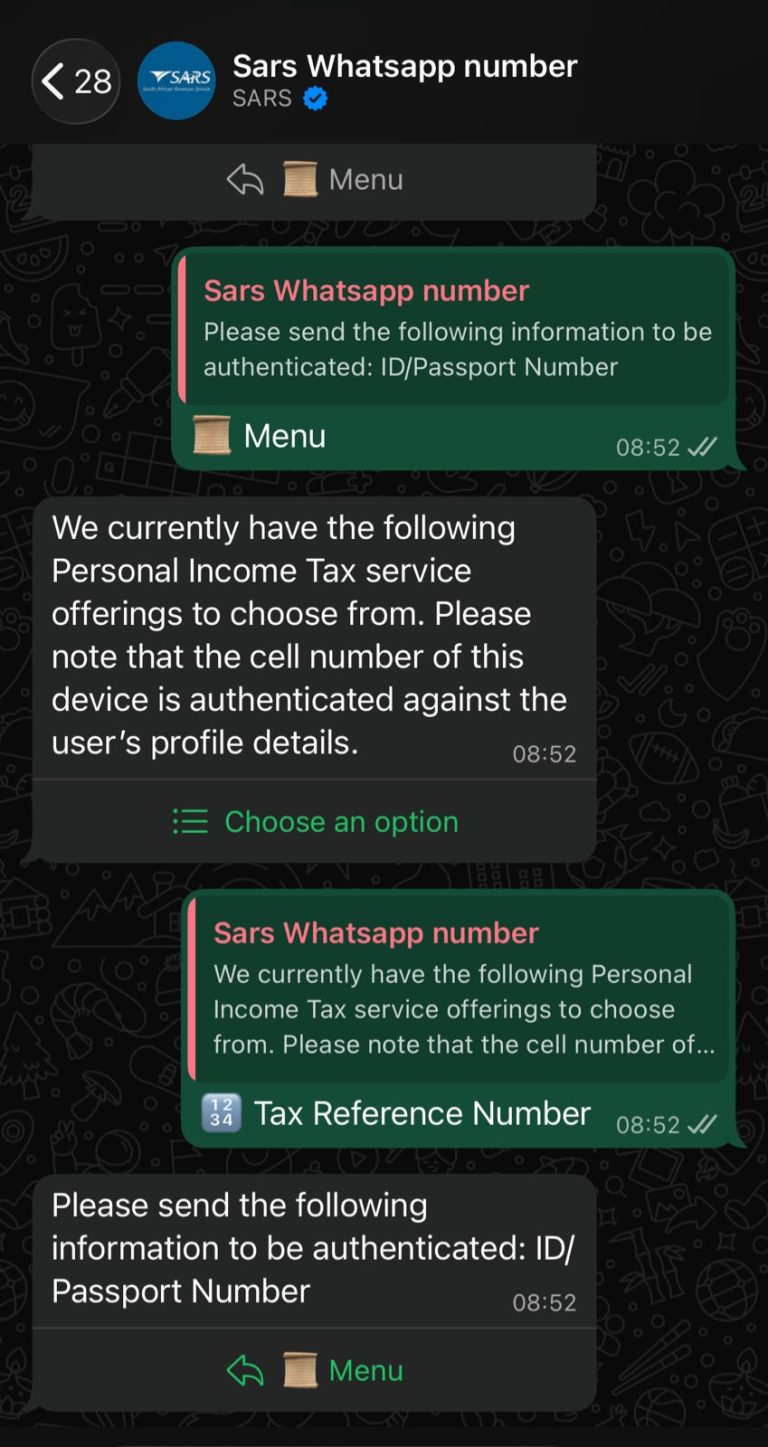
Steps:
- Open the SARS WhatsApp chat.
- Send Hi.
- Select Choose an option.
- Select Tax Reference Number.
- Select Send.
- Provide the requested identification details.
- Complete the authentication process.
If your information is successfully verified, SARS will display your tax reference number in the WhatsApp chat.
SARS can also issue your Notice of Registration (IT150) as an attachment.
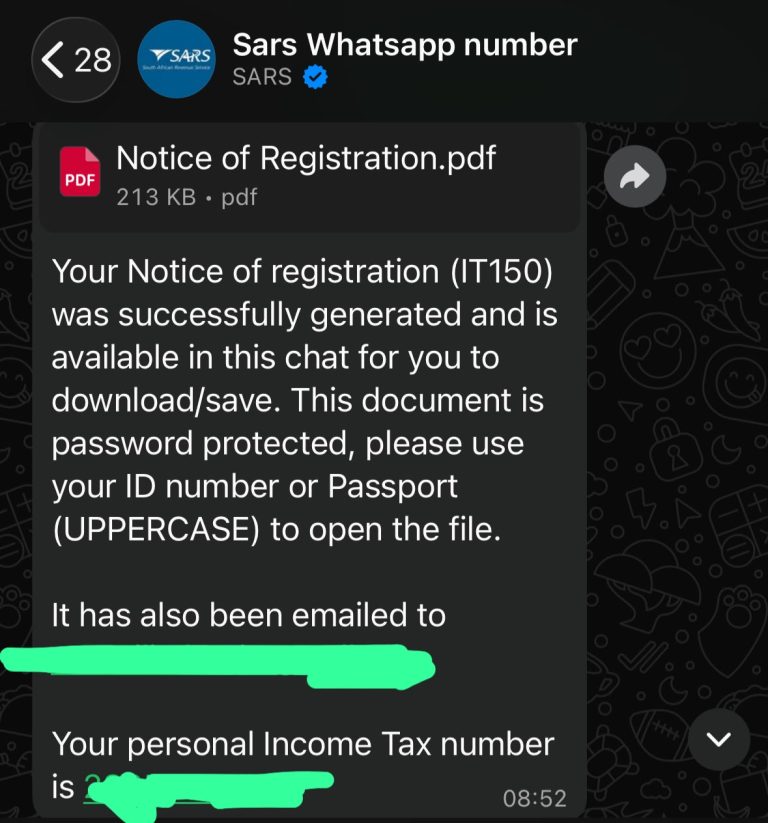
The IT150 is encrypted. SARS says you will need your ID or passport details to open it; passport holders must enter the letters in uppercase.
How to Check Your SARS Refund Status on WhatsApp
You can use SARS WhatsApp to check the status of your tax refund.
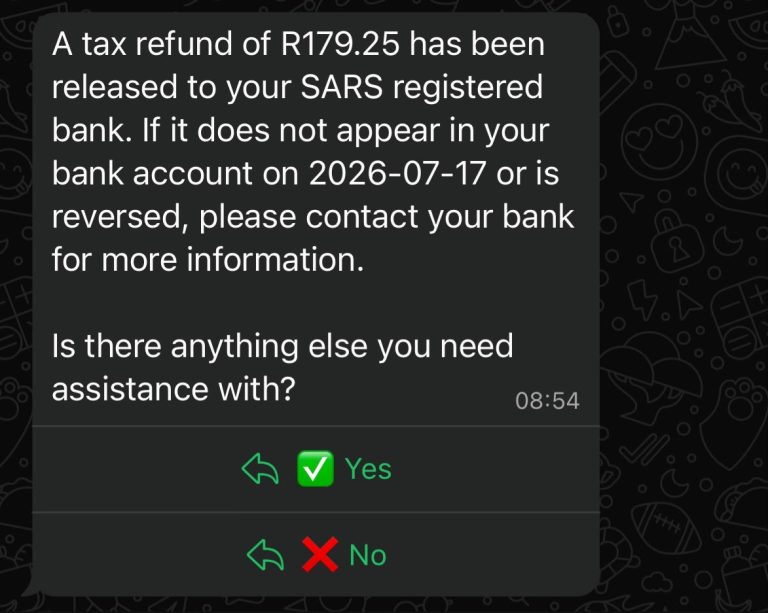
Steps:
- Open the SARS WhatsApp chat.
- Send Hi.
- Select Choose an option.
- Select Refund Status.
- Select Send.
- Provide your ID or passport number.
- Provide your tax reference number.
- Complete the verification process.
Once your information has been successfully verified, SARS will display your refund status in the WhatsApp chat.
How to Check Your SARS Audit Status on WhatsApp
If SARS is conducting an audit or you are waiting for an audit-related update, you can check the status through WhatsApp.
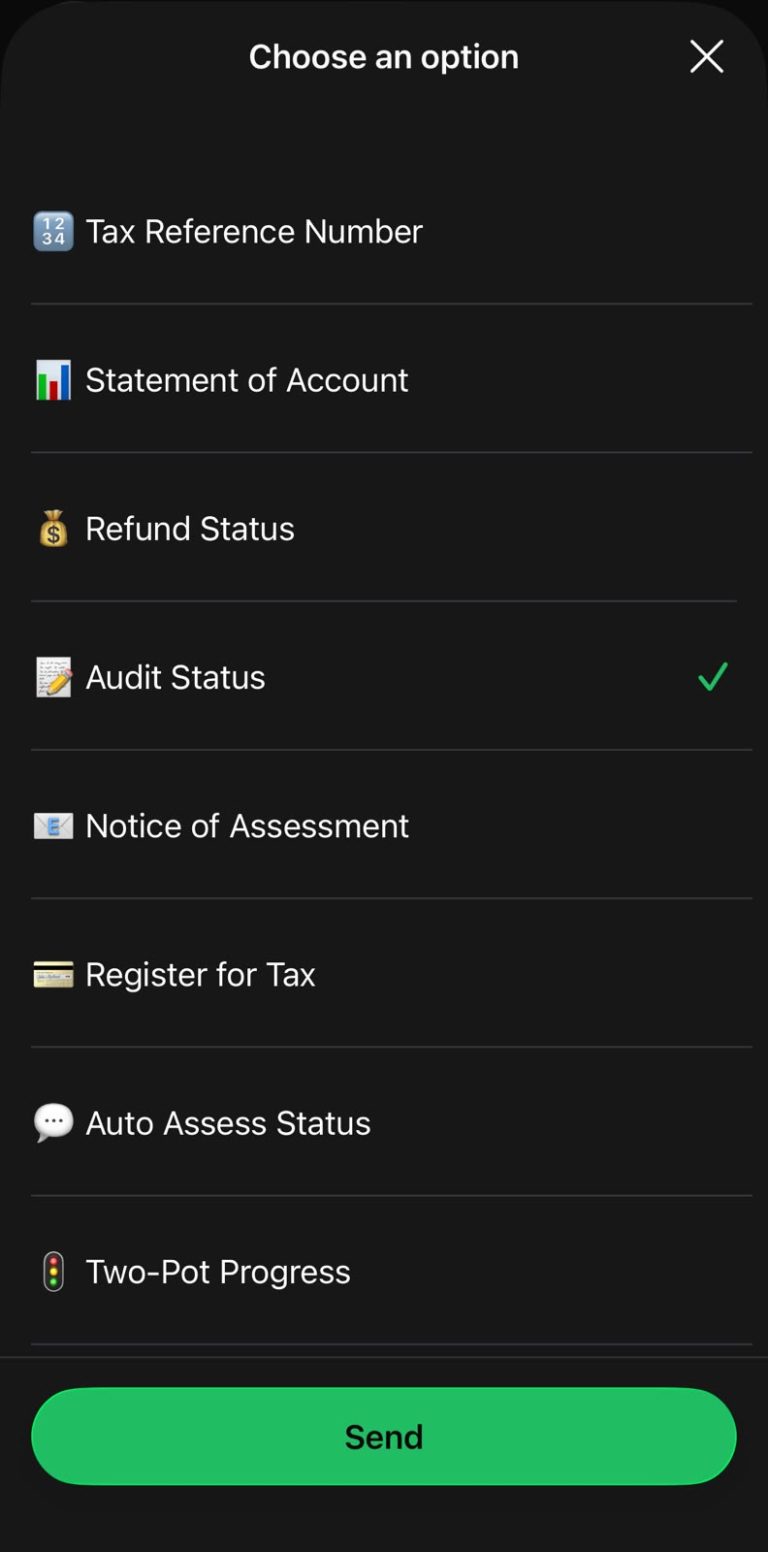
Steps:
- Open SARS WhatsApp.
- Send Hi.
- Select Choose an option.
- Select Audit Status.
- Tap Send.
- Enter the requested ID or passport number.
- Enter your tax reference number.
- Complete authentication.
SARS will then provide your audit status in the WhatsApp conversation.
How to Get Your SARS Notice of Assessment on WhatsApp
Your Notice of Assessment (ITA34) contains important information about the outcome of your tax assessment.
You can request it through SARS WhatsApp.
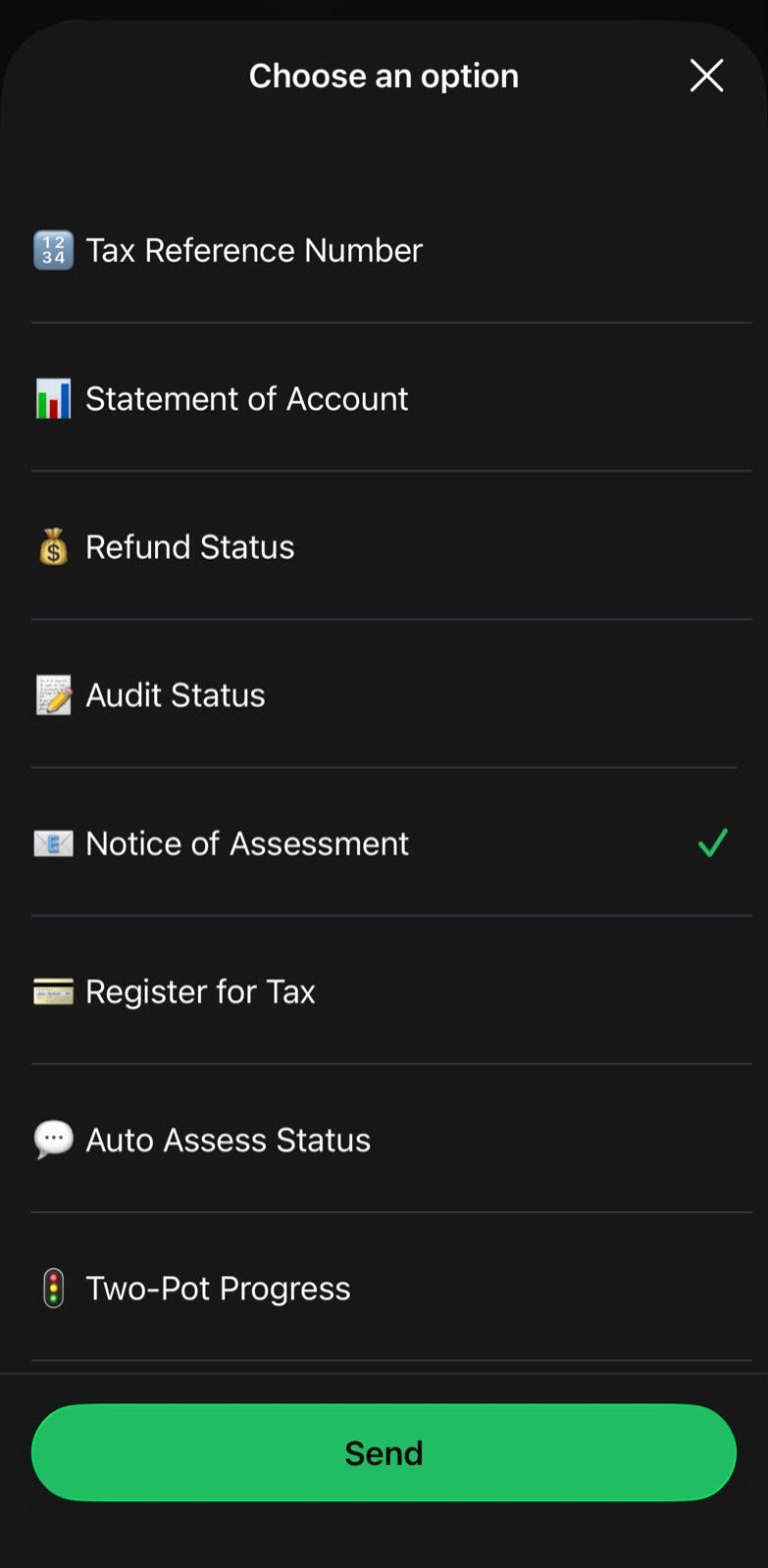
Steps:
- Open the SARS WhatsApp number.
- Send Hi.
- Select Choose an option.
- Select Notice of Assessment.
- Tap Send.
- Enter your ID or passport number.
- Enter your tax reference number.
- Provide your email address if requested.
- Complete the authentication process.
Once verified, SARS can provide the ITA34 through WhatsApp and send it to your registered email address.
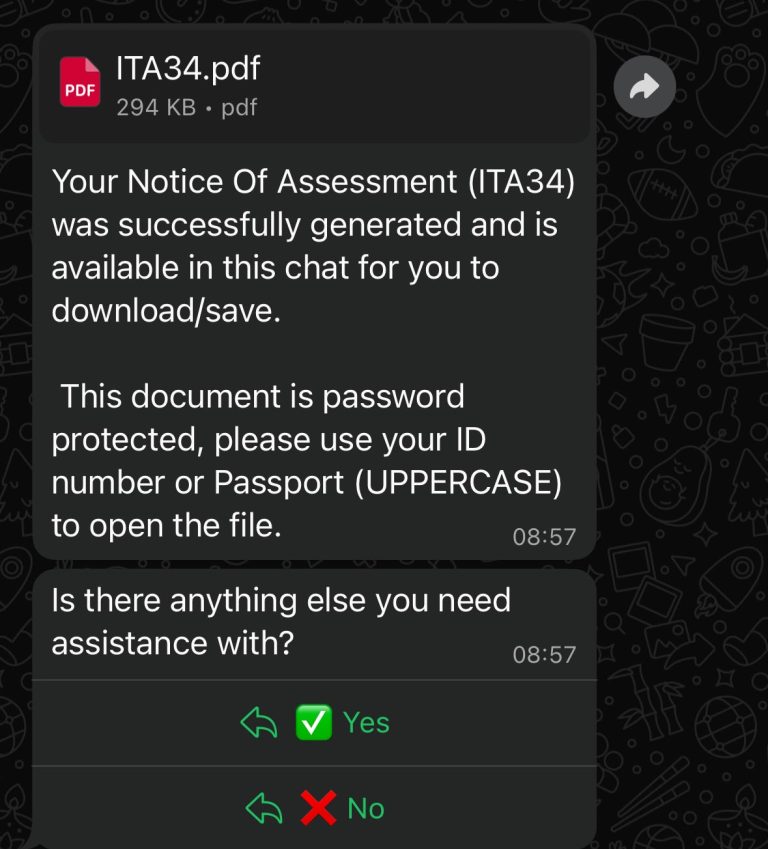
The document is encrypted, so you will need your identification details to open it.
How to Get Your SARS Statement of Account on WhatsApp
A Statement of Account (SOA) can help you understand your SARS account and determine whether there is an amount owing or other account activity.
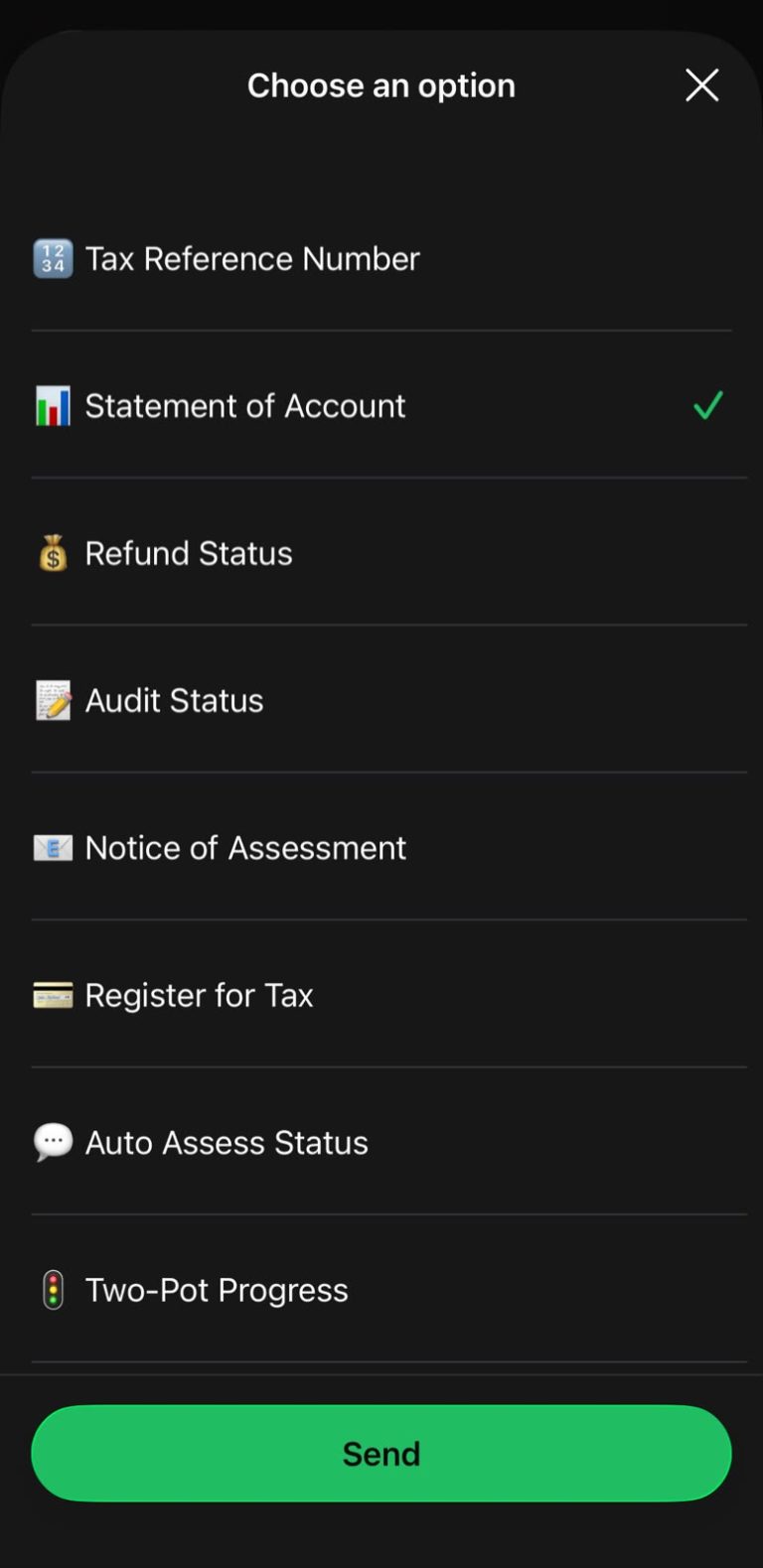
Steps:
- Open SARS WhatsApp.
- Send Hi.
- Select Choose an option.
- Select Statement of Account.
- Tap Send.
- Provide your ID or passport number.
- Enter your tax reference number.
- Enter your email address if requested.
- Complete authentication.
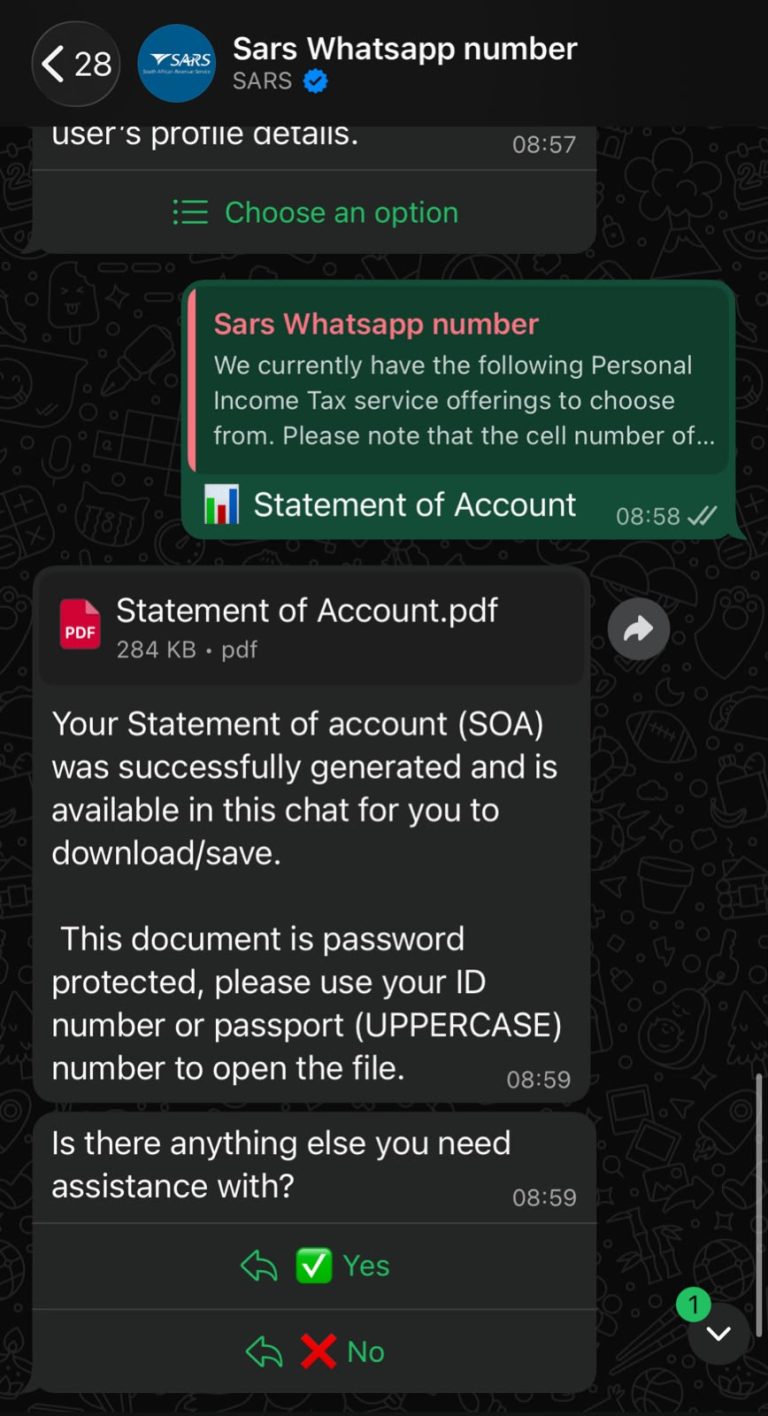
After successful verification, SARS can provide the Statement of Account through WhatsApp and email it to the address recorded on your SARS profile.
How to Register for Personal Income Tax on WhatsApp
SARS also allows eligible individuals to register for Personal Income Tax using WhatsApp.
Steps:
- Open SARS WhatsApp.
- Send Hi.
- Select Choose an option.
- Select Register for Tax.
- Tap Send.
- Provide your South African ID number.
- Provide your name and surname.
- Provide your email information if requested.
- Enter your residential address.
- Complete the verification process.
SARS states that the registration process requires valid personal information and a valid South African ID number.
Once registration has been successfully completed, your tax reference number can be displayed in the WhatsApp chat and an IT150 can be issued.
How to Check SARS Auto Assessment Status on WhatsApp
This is one of the newer SARS WhatsApp services.
SARS announced on 10 July 2026 that taxpayers can use WhatsApp to check whether SARS has selected them for Auto Assessment during filing season.
Steps:
- Open SARS WhatsApp.
- Send Hi.
- Select Choose an option.
- Select Auto Assess Status.
- Tap Send.
- Enter your ID or passport number.
- Enter your tax reference number.
- Complete authentication.
SARS will then display your Auto Assessment status in the WhatsApp chat.
How to Check Your Two-Pot Tax Directive Progress
SARS WhatsApp can also be used to check the progress of a Two-Pot tax directive application.
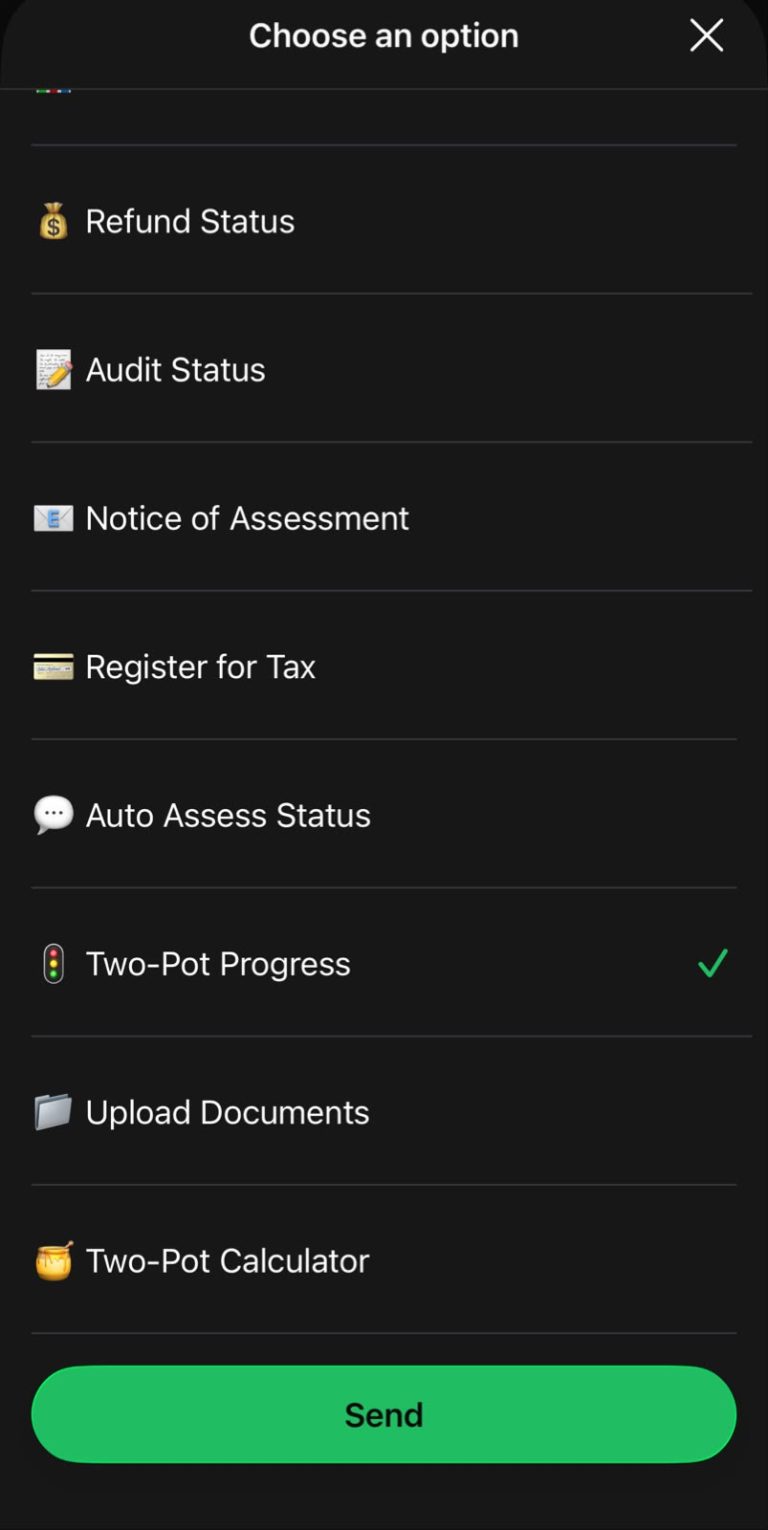
Steps:
- Open SARS WhatsApp.
- Send Hi.
- Select Choose an option.
- Select Two-Pot Progress.
- Tap Send.
- Provide your ID number.
- Provide your tax reference number.
- Complete authentication.
SARS may display statuses such as:
- Finalised – the application has been approved.
- Declined – the application has been declined.
- In progress – the application is still being processed.
If SARS cannot find an application, the service will indicate that no tax directive application was found for the tax reference number provided.
How to Upload Documents to SARS Through WhatsApp
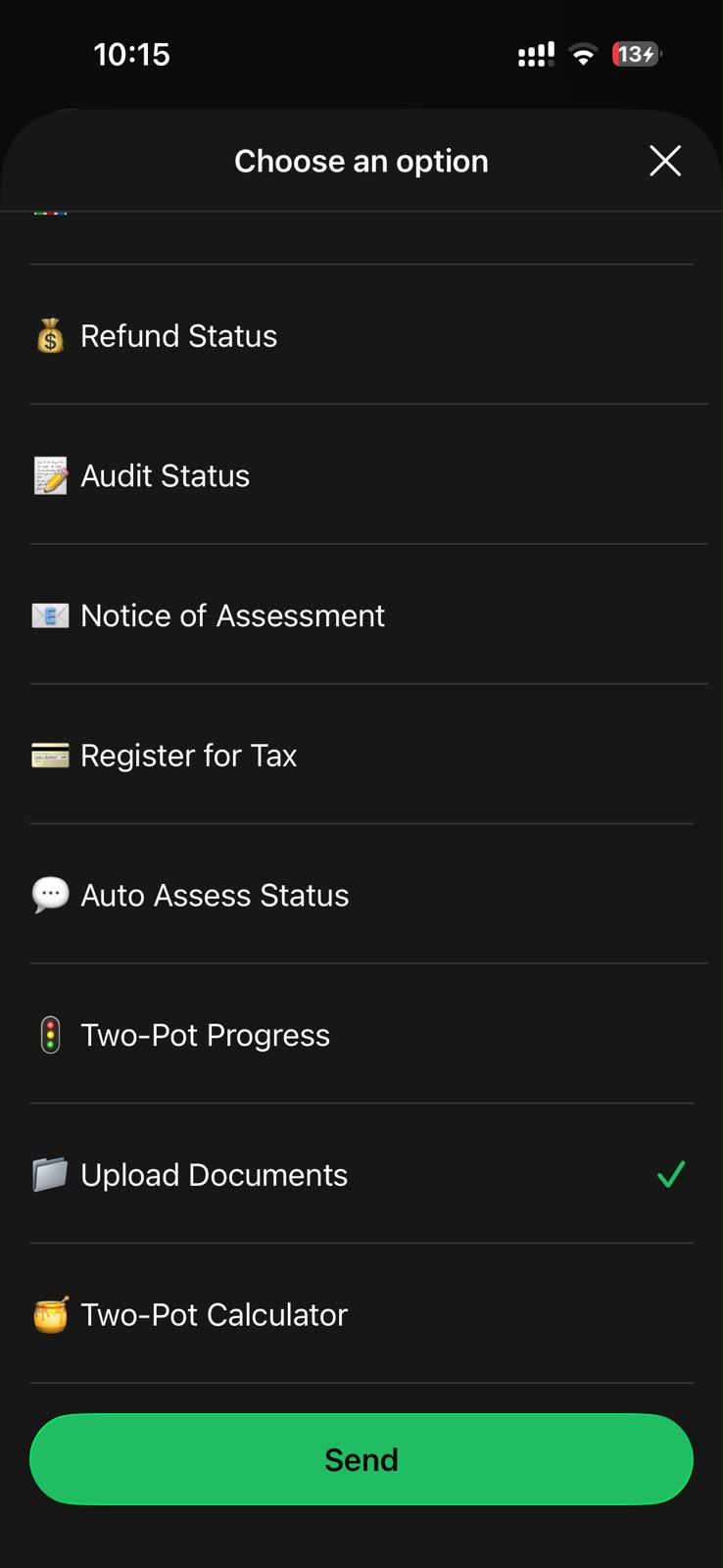
One of the more useful features is the ability to submit supporting documents through WhatsApp.
This can be particularly useful when SARS asks you to provide documents for a tax query or verification.
- Open SARS WhatsApp.
- Send Hi.
- Select Choose an option.
- Select Upload Documents.
- Tap Send.
- Enter your identification details.
- Enter your tax reference number.
- Complete authentication.
- Select the relevant case number.
- Select the + or paperclip icon.
- Choose the document from your phone.
- Follow the prompts.
- Add additional documents if required.
- Select Yes, submit now.
SARS recommends PDF format and says documents must be clear and legible. The current guide also states that a maximum of 10 documents can be uploaded in the submission. (South African Revenue Service)
After successful submission, SARS should provide confirmation that the documents were submitted.
How to Use the SARS Two-Pot Calculator
If you are considering withdrawing money under the Two-Pot Retirement System, SARS WhatsApp provides a calculator that can give you an estimated payout.
Steps:
- Open SARS WhatsApp.
- Send Hi.
- Select Choose an option.
- Select Two-Pot Calculator.
- Tap Send.
- Enter your ID number.
- Enter your tax reference number.
- Enter your annual income.
- Enter the amount you intend to withdraw.
- Complete verification.
- Open the calculation link provided by SARS.
The result is an estimate, not a guarantee of the final amount you will receive. SARS notes that the amount may change when the actual directive is processed. (South African Revenue Service)
5. My Experience or Practical Insights
In my experience, one of the biggest advantages of using the SARS WhatsApp service is convenience. Instead of immediately looking for a SARS branch, waiting for assistance, or navigating through multiple pages on eFiling, you can start by sending a simple WhatsApp message and following the guided instructions.
The service is particularly useful when you already know what you need. For example, if your goal is to find your tax reference number, selecting “Tax Reference Number” from the available options is much easier than navigating through unrelated services or menu options.
It is also important to ensure that your cellphone number is registered with SARS and matches the details held on your SARS profile. This authentication step helps protect your personal tax information and ensures that SARS can verify your identity before providing certain services.
Overall, I found the SARS WhatsApp service to be convenient, straightforward and user-friendly. The instructions are presented in a way that makes the process relatively easy to follow, even if you are not particularly familiar with online tax services.
For me, the biggest benefit is having access to certain SARS services literally at my fingertips. Instead of travelling to a branch for every basic enquiry, the WhatsApp platform provides a practical starting point for completing simple tax-related tasks from your phone.
6. Common Mistakes to Avoid
1. Using the wrong WhatsApp number
Always verify that you are using the official SARS WhatsApp number:
0800 11 7277
2. Using an unregistered cellphone number
Your WhatsApp number needs to match the contact number registered with SARS for the relevant Personal Income Tax services.
3. Entering incorrect personal information
If the details you provide do not match SARS records, authentication may fail.
4. Ignoring the terms and conditions
You must accept the SARS WhatsApp terms before accessing the service.
5. Uploading poor-quality documents
Blurry photographs, incomplete documents or unreadable scans can cause problems.
Use clear documents and, where practical, PDF files.
6. Uploading the wrong documents
Before selecting Submit, check that you have uploaded all the documents SARS requested.
7. Assuming WhatsApp can do everything eFiling can do
WhatsApp is a self-service channel for selected services. It does not replace every SARS service available through eFiling, the SARS MobiApp or a SARS branch.
8. Sharing your SARS information with strangers
Never give your ID number, tax reference number, passwords, OTPs or other sensitive information to someone claiming to be a SARS representative through an unofficial account.
7. Troubleshooting
SARS WhatsApp is not responding
First check that:
- Your internet connection is working.
- You have saved the correct SARS number.
- You are using WhatsApp normally.
- You have followed the prompts correctly.
You can also send menu if the service menu does not appear. SARS specifically recommends this when the menu fails to display.
My cellphone number is not recognised
Your number may not match the number recorded on your SARS profile.
You may need to update your SARS contact details through an appropriate SARS channel.
My information cannot be verified
Check that your:
- ID/passport number;
- tax reference number;
- email address; and
- other requested information
match the details SARS has on record.
I cannot open my SARS document
Some documents issued through WhatsApp are encrypted.
For example, SARS states that an IT150 requires your ID number or passport details to open it. Passport holders should enter the letters in uppercase.
I cannot upload my documents
Check that:
- The file is in an accepted format.
- The document is clear.
- The file is not unnecessarily large.
- You have not exceeded the document limit.
- You have selected the correct SARS case.
8. Helpful Tips and Best Practices
Save SARS as a contact
Saving 0800 11 7277 makes it easier to find the official SARS WhatsApp account later.
Keep your SARS details updated
Make sure SARS has your current:
- cellphone number;
- email address;
- residential address; and
- other relevant personal details.
Keep your tax documents organised
Create a folder on your phone or computer containing important documents such as:
- IRP5 certificates;
- medical aid certificates;
- retirement annuity certificates;
- proof of expenses where applicable;
- SARS notices;
- tax returns; and
- supporting documents.
This makes it much easier to respond if SARS requests documentation.
Use WhatsApp for simple queries first
For straightforward services such as checking your refund status or requesting your tax number, WhatsApp can be a convenient starting point.
Don’t rely on screenshots alone
If SARS sends you an important document, save the actual document and keep a copy in a secure location.
Be careful of scams
SARS-related scams can use WhatsApp, SMS, email and social media.
Do not click suspicious links or provide sensitive information to an account that you cannot verify.
9. Frequently Asked Questions
1. What is the SARS WhatsApp number?
The official SARS WhatsApp number is 0800 11 7277.
2. Can I check my SARS tax number on WhatsApp?
Yes. You can use the Tax Reference Number option on the SARS WhatsApp menu and complete the required authentication.
3. Can I check my SARS refund on WhatsApp?
Yes. Select Refund Status from the SARS WhatsApp service menu and provide the information requested for authentication.
4. Can I get my SARS Notice of Assessment on WhatsApp?
Yes. You can request your ITA34 Notice of Assessment through SARS WhatsApp after completing the required verification.
5. Can I get my SARS Statement of Account on WhatsApp?
Yes. SARS provides a Statement of Account service through WhatsApp for eligible taxpayers.
6. Can I register for tax using SARS WhatsApp?
Yes. SARS allows Personal Income Tax registration through its WhatsApp service.
7. Can I check my Auto Assessment status on WhatsApp?
Yes. SARS added an Auto Assessment Status option to its WhatsApp services in July 2026.
8. Can I upload documents to SARS through WhatsApp?
Yes. SARS allows taxpayers to submit supporting documents through WhatsApp after authentication. The current SARS guide recommends PDF documents and allows up to 10 documents in a submission.
9. Can I check my Two-Pot tax directive status on WhatsApp?
Yes. You can select Two-Pot Progress to check the status of your tax directive application.
10. Can I use SARS WhatsApp if I am not registered for Personal Income Tax?
SARS states that anyone can use the platform for general tax questions, but the Personal Income Tax self-service functions require the relevant taxpayer registration and authentication.
10. Official Resources and References
For the most accurate and up-to-date information, taxpayers should use SARS’s official resources.
- SARS Guide to Mobile Tax Services — Detailed information about WhatsApp, SMS and USSD services.
- SARS Mobile Tax Services — Current list of SARS mobile services and recent updates.
- SARS: How do I register for tax? — Official SARS registration information.
- SARS WhatsApp Terms and Conditions — Official terms governing use of the SARS WhatsApp service.
Important: SARS services can change, so always verify the available options and contact details on the official SARS website before providing personal information.
11. Conclusion
The expansion of SARS WhatsApp tax services gives South African taxpayers another convenient way to handle everyday tax queries.
You can use WhatsApp to request your tax reference number, check a refund or audit status, obtain your Notice of Assessment, request a Statement of Account, register for Personal Income Tax, check Auto Assessment status, track certain Two-Pot applications, upload supporting documents and use the Two-Pot tax calculator.
The basic process is simple:
Save 0800 11 7277 → Send “Hi” → Accept the terms → Choose your service → Complete verification.
The most important thing is to ensure that your cellphone number and personal details match the information SARS has on record.
For more complicated tax matters, WhatsApp may not be enough, and you may need to use eFiling, the SARS MobiApp, the SARS Contact Centre or another official SARS channel.
12. Disclaimer
The information in this article is provided for general informational purposes only and is based on SARS information available at the time of publication.
HowToGuide.co.za is not affiliated with, endorsed by or operated by the South African Revenue Service (SARS).
SARS may change its WhatsApp services, requirements, menus, authentication procedures or contact channels from time to time. Always verify important tax information directly with SARS before making decisions or submitting personal information.
This article does not constitute tax, financial or legal advice. For advice relating to your specific tax circumstances, consult SARS or a suitably qualified tax professional.

.
About Pheto M
Pheto M is the founder and guide writer of HowToGuide.co.za, a practical information website created to help people find clear, useful and easy-to-understand guidance on everyday topics.
Pheto started HowToGuide.co.za after noticing a common problem: people often need help with important questions, applications, services and everyday decisions, but the information available online can be confusing, difficult to understand or scattered across different sources.
Pheto has experience and knowledge across several areas, including Business, Information Technology (IT), Education and Relationships. These areas have given her a practical understanding of different challenges people face in their personal, professional and everyday lives.
Today, she dedicates her time to researching, writing and updating practical guides designed to help readers understand information and take the right steps with greater confidence.
Her approach is simple: make complex information simple, confusing processes clear, and difficult situations easier to manage.
Through HowToGuide.co.za, Pheto aims to provide practical, accessible and helpful information that readers can use in their everyday lives.
Pheto values feedback from readers and is committed to continually improving the content on HowToGuide.co.za. If you have a question, suggestion, or would like to get in touch, you can email her at admin@howtoguide.co.za. She personally reviews reader feedback and aims to respond within 48 hours.
How to Check If Someone Is Trying to Hack Your WhatsApp: 2026
August 21, 2026
Reading Time: 10 minutesLearn how to check if someone is trying to hack your WhatsApp. Discover key warning signs, like unexpected verification codes and unfamiliar linked devices, and follow simple steps to secure your account.
How to Use SARS WhatsApp Tax Services in 2026: Step-by-Step Guide
August 8, 2026
Reading Time: 12 minutesLearn how to access SARS tax services on WhatsApp in 2026. Step-by-step guide to check tax numbers, refund status, auto-assessments, and submit documents.
How to Reverse an FNB eWallet Payment on the FNB App (2026)
August 4, 2026
Reading Time: 6 minutesLearn how to reverse an FNB eWallet payment step-by-step using the FNB App, check transaction status, and act fast before funds are redeemed.
How to Cancel a FOX One Subscription on Roku or Youtube (2026): Easy Step-by-Step Guide.
July 26, 2026
Reading Time: 5 minutesNeed to cancel your FOX One subscription? Whether you signed up through Roku, YouTube, or directly, learn the exact step-by-step process to cancel your account, avoid unwanted auto-renewals, and manage your billing hassle-free.
How to Cancel Vodacom Subscriptions (Caller Tunes, Games & Contracts – 2026 Guide)
July 20, 2026
Reading Time: 5 minutesCharged for unknown airtime services? Learn how to cancel subscriptions on Vodacom step-by-step—including WASP content, caller tunes, recurring data bundles, and full contracts
How to Recall an Email in Outlook (2026 Step-by-Step Guide)
July 20, 2026
Reading Time: 6 minutesNeed to unsend an email in Outlook? Here is a step-by-step guide on how to recall an email, when the feature actually works, and what to do if it fails.