
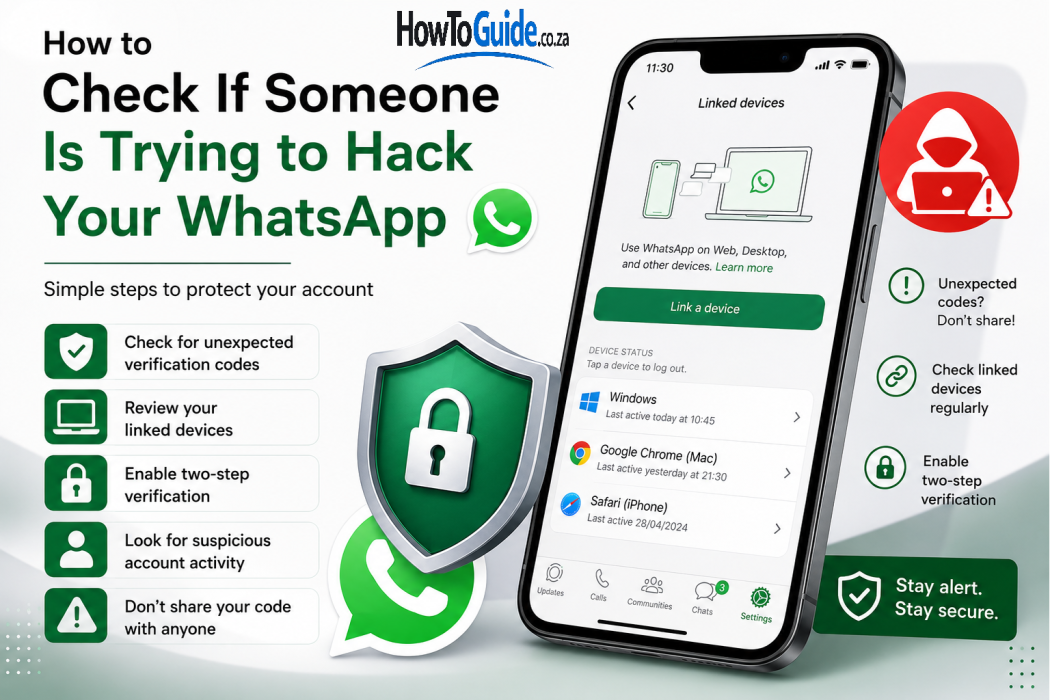
Introduction
WhatsApp is one of the most popular messaging apps in South Africa and around the world. People use it to communicate with family, friends, customers, colleagues and businesses.
Because WhatsApp contains private conversations, photos, documents and other personal information, it is important to protect your account.
The good news is that there are several signs that can help you identify suspicious activity. For example, you may receive an unexpected WhatsApp verification code, notice an unfamiliar linked device, or discover that messages have been sent without your knowledge.
This guide explains how to check if someone is trying to hack your WhatsApp, what warning signs to look for, and what you should do if you think someone is trying to access your account.
Important: Receiving a verification code that you did not request does not automatically mean that your WhatsApp has been hacked. It can mean that someone is attempting to register your phone number on another device.
2. Who This Guide Is For
This guide is for anyone who uses WhatsApp and wants to improve the security of their account.
It may be especially useful if:
- You received a WhatsApp verification code that you did not request.
- Someone asked you to send them your WhatsApp code.
- You received a strange WhatsApp message about your account.
- You noticed an unfamiliar device in Linked Devices.
- Your WhatsApp suddenly logged you out.
- Messages appear to have been sent without your permission.
- You suspect someone knows your WhatsApp PIN.
- You clicked on a suspicious WhatsApp link.
- You want to check your WhatsApp security even though nothing appears wrong.
You do not need to be a technology expert to follow the steps in this guide.
3. Requirements
Before checking your WhatsApp account, make sure you have:
- Your smartphone.
- The latest version of WhatsApp available for your device.
- Access to the phone number registered with WhatsApp.
- Your WhatsApp two-step verification PIN, if you have enabled it.
- A secure internet connection.
- Access to your phone’s screen lock, such as your PIN, password or fingerprint.
Most importantly, never give your WhatsApp verification code or two-step verification PIN to another person.
WhatsApp will not normally need you to send your verification code to another person.
4. Step-by-Step Guide
Step 1: Check for an Unexpected WhatsApp Verification Code
One of the most common warning signs is receiving a WhatsApp registration or verification code when you did not request one.
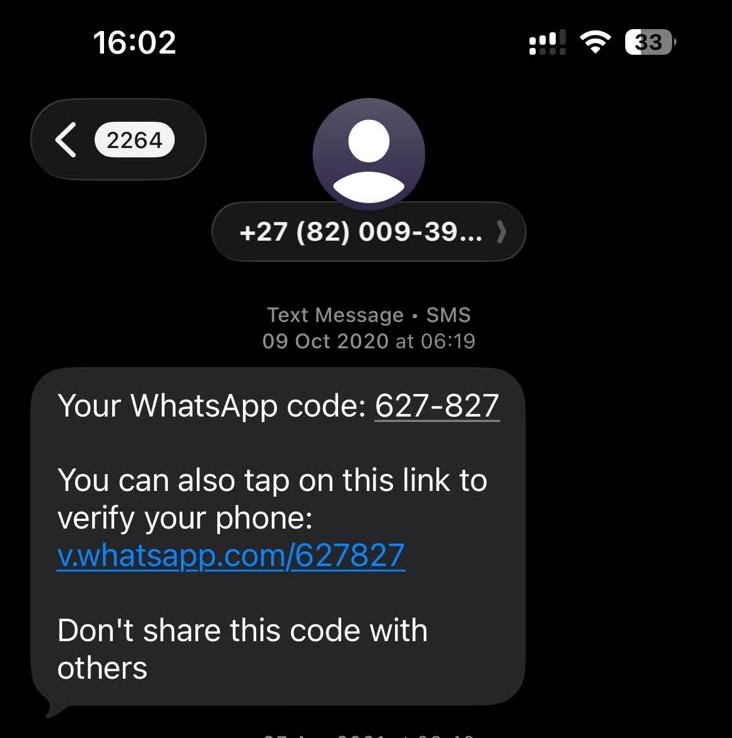
The code may arrive by SMS or through another method supported by WhatsApp.
If you receive a code that you did not request:
- Do not share the code with anyone.
- Do not type the code into a website or form sent to you by another person.
- Do not send the code back to the person who asks for it.
- Ignore unexpected requests for the code.
- Open WhatsApp directly and check your account.
Someone may be attempting to register your phone number on another device.
What if someone calls you asking for the code?
Do not give it to them.
A scammer may pretend to be a friend, WhatsApp employee, delivery company, bank employee or another trusted person.
They may tell you that they accidentally sent a code to your number and ask you to forward it.
Do not do it.
The verification code is designed to prove control of your phone number.
Step 2: Check Your Linked Devices
WhatsApp allows you to connect your account to other devices, such as computers.
This feature is useful, but you should regularly check which devices have access to your account.
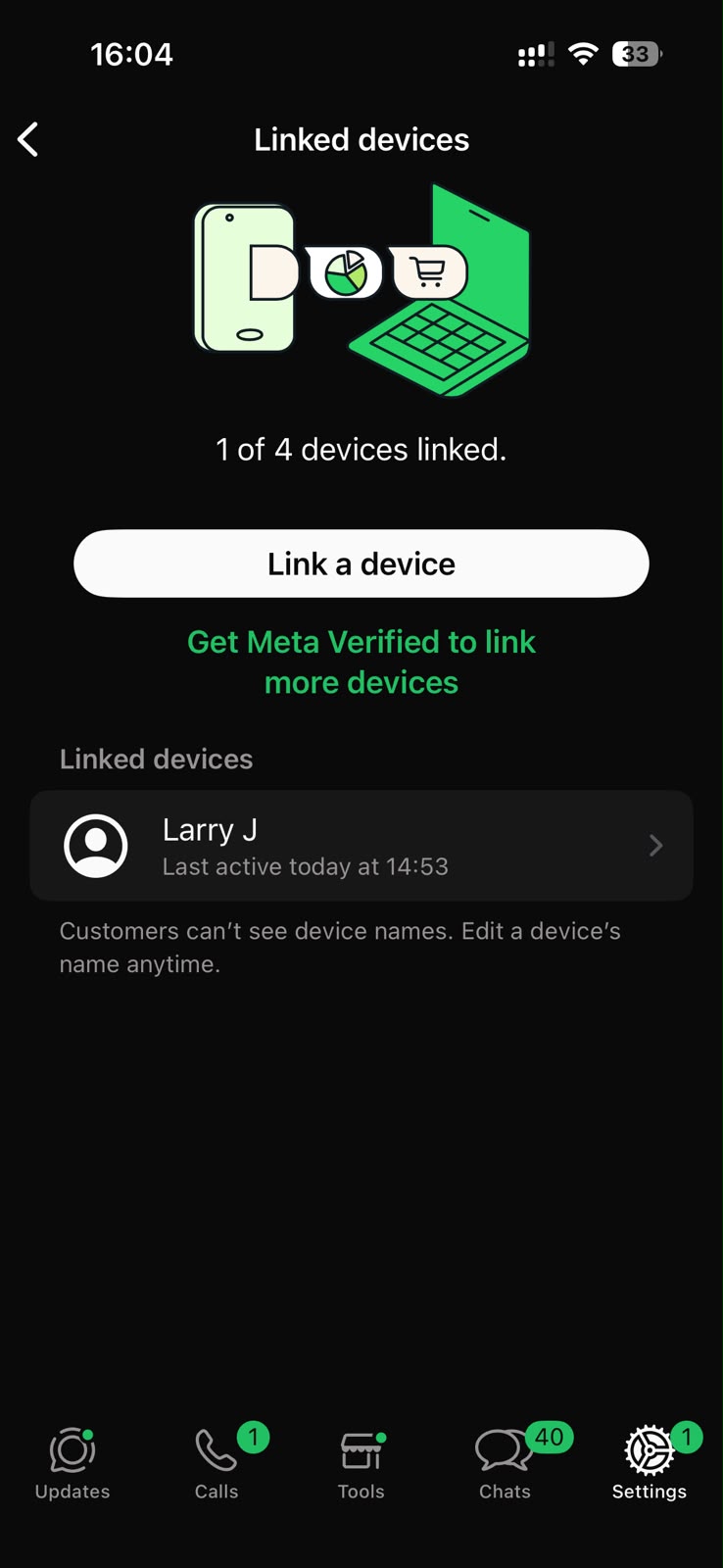
On most phones:
- Open WhatsApp.
- Open Settings.
- Select Linked Devices.
- Review the devices listed.
- Look for anything you do not recognise.
- Select an unfamiliar device.
- Log it out/Remove device.
The exact appearance of the menu may differ depending on your phone and WhatsApp version.
What should you look for?
Pay attention to:
- Devices you do not own.
- Computers you do not recognise.
- Unexpected browsers.
- A device that was linked when you were not using WhatsApp.
- Recent activity that you cannot explain.
If you see a device you do not recognise, log it out immediately.
Step 3: Check Whether Your Account Has Been Logged Out
Another warning sign is suddenly being logged out of WhatsApp.
If WhatsApp tells you that your phone number is being registered on another device, take the situation seriously.
Do not panic.
If you still control your phone number, you may be able to regain control by registering your number again using the official WhatsApp verification process.
If you regain access
Immediately:
- Check Linked Devices.
- Remove devices you do not recognise.
- Enable two-step verification.
- Review your account settings.
- Make sure your email address, if associated with account recovery or two-step verification, is secure.
- Update your phone and WhatsApp if updates are available.
Step 4: Look for Suspicious Messages
Check your recent conversations for activity that you did not perform.
For example, you might notice:
- Messages you do not remember sending.
- Messages marked as read when you have not opened them.
- Strange messages sent to your contacts.
- Unusual group activity.
- Changes to your profile information.
- Messages asking your contacts for money.
However, remember that unusual activity does not always mean that your WhatsApp account has been hacked.
Someone may have physical access to your unlocked phone, for example.
Step 5: Check Your WhatsApp Profile
Open your WhatsApp profile and check whether anything has changed without your permission.
Look at:
- Your profile photo.
- Your name.
- Your About information.
- Your privacy settings.
- Your linked devices.
- Your two-step verification settings.
If you notice a change you did not make, investigate further and secure your account.
Step 6: Enable Two-Step Verification
Two-step verification adds another layer of protection to your WhatsApp account.
To enable it:
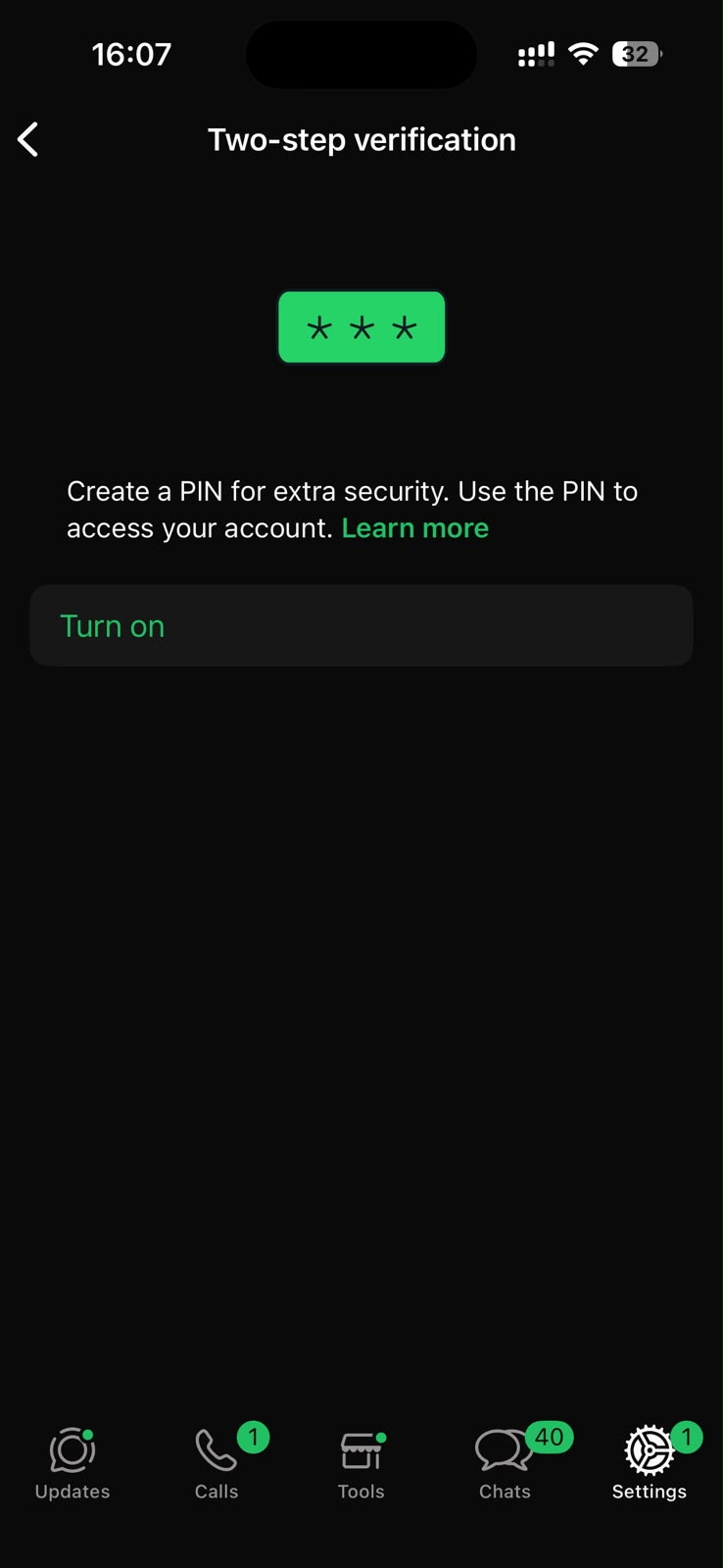
- Open WhatsApp.
- Go to Settings.
- Select Account.
- Select Two-step verification.
- Choose Enable.
- Create a PIN.
- Add an email address if WhatsApp offers the option and you want to use it for account recovery.
Choose a PIN that other people cannot easily guess.
Do not use obvious combinations such as:
- 123456
- 000000
- Your birthday
- Your phone number
And do not share your PIN with other people.
Step 7: Protect Your Email Account
If you use an email address for WhatsApp account recovery, your email account should also be protected.
If someone gains access to your email account, they may potentially use it to interfere with account recovery.
Make sure your email account has:
- A strong, unique password.
- Two-factor authentication where available.
- Recovery information that belongs to you.
- No unfamiliar login sessions.
Step 8: Check Your Phone for Suspicious Apps
Sometimes the problem may not be WhatsApp itself.
A malicious or suspicious application on your phone could create security problems.
Review the apps installed on your phone.
Ask yourself:
- Do I recognise every app?
- Did I install the app myself?
- Does the app have unusual permissions?
- Did I install an app shortly before the problem started?
- Does an app request access that it does not need?
Remove applications that you do not recognise or no longer need, particularly if they came from an untrusted source.
Only download apps from trusted app stores whenever possible.
Step 9: Update WhatsApp and Your Phone
Software updates often contain security improvements and bug fixes.
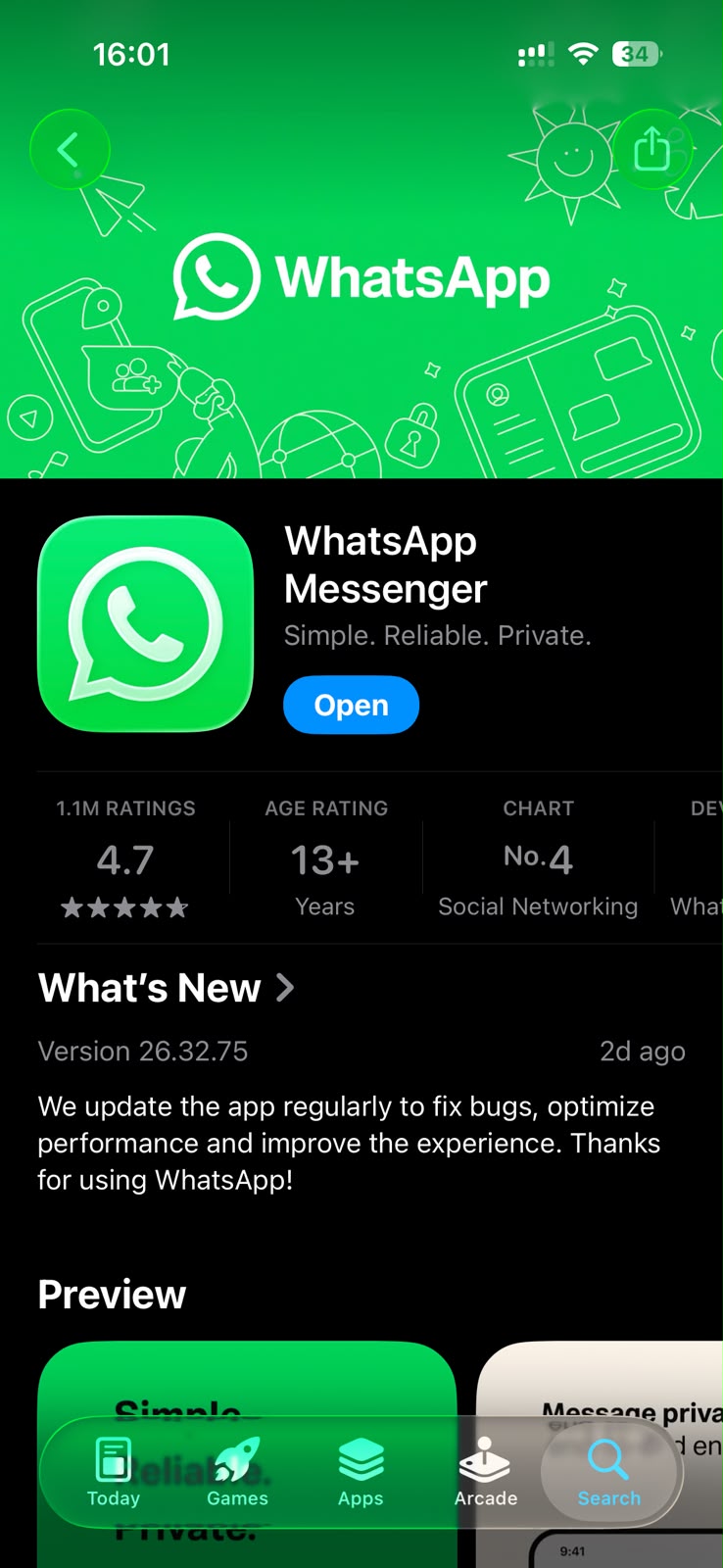
Check whether:
- WhatsApp needs an update.
- Your Android or iPhone operating system needs an update.
- Your security updates are current.
Avoid using unofficial or modified versions of WhatsApp.
Modified versions may create additional security and privacy risks.
Step 10: Secure Your Phone
Your WhatsApp security is also connected to your phone security.
If someone can easily unlock your phone, they may be able to access your WhatsApp messages.
Use a secure:
- PIN
- Password
- Fingerprint
- Face authentication
Also avoid leaving your unlocked phone unattended in public places.
5. My Experience or Practical Insights
One of the most important practical lessons when dealing with WhatsApp security is not to panic when you receive a strange verification message.
People often make the situation worse because they immediately respond to the person contacting them.
For example, a scammer may say:
“I accidentally sent a WhatsApp code to your number. Please send it to me.”
The safest response is to send nothing.
Another useful habit is to check Linked Devices regularly. You do not need to wait until you suspect a problem.
It is also important to remember that a suspicious verification code does not necessarily mean that somebody has successfully hacked your account. It may simply mean that someone is attempting to register your number.
The most important thing is to protect the verification code and maintain control of your phone number.
6. Common Mistakes to Avoid
Mistake 1: Sharing the verification code
Never give your WhatsApp verification code to another person.
This is one of the biggest mistakes you can make.
Mistake 2: Trusting someone because they know your name
Scammers can obtain personal information from social media and other sources.
Knowing your name does not prove that someone is legitimate.
Mistake 3: Clicking suspicious links
Avoid clicking links sent by unknown people or suspicious accounts.
A link may take you to a fake website designed to steal information.
Mistake 4: Ignoring Linked Devices
If you never check Linked Devices, you may not notice an unfamiliar device connected to your account.
Mistake 5: Using the same PIN everywhere
Avoid using the same PIN or password for multiple accounts.
Mistake 6: Installing unofficial WhatsApp versions
Use the official WhatsApp application rather than modified versions from unknown websites.
Mistake 7: Ignoring phone security
A secure WhatsApp account is less useful if anyone can unlock your phone.
7. Troubleshooting
I received a WhatsApp verification code that I did not request
Do not share the code.
Someone may have entered your phone number while attempting to register WhatsApp.
Keep the code private and continue monitoring your account.
I see an unknown device under Linked Devices
Log out of the unfamiliar device immediately.
Then enable or review two-step verification and check your account for other unusual activity.
I have been logged out of WhatsApp
Try registering your phone number again using the official WhatsApp application.
If WhatsApp asks you for a verification code, only enter the code that you receive on your own phone.
If you believe someone has taken control of your account, follow WhatsApp’s official account recovery guidance.
Someone is asking me for my WhatsApp PIN
Do not give it to them.
Your PIN should remain private.
My contacts received strange messages from my WhatsApp
First, check Linked Devices.
Then secure your account and remove devices you do not recognise.
You should also tell your contacts not to trust unusual messages that appear to have come from you.
I clicked on a suspicious link
Do not provide personal information on the website.
If you entered a password, change that password immediately from the official website or app.
If you downloaded an unknown application, remove it and review your phone’s security.
8. Helpful Tips and Best Practices
Use these habits to keep your WhatsApp account safer:
1. Never share verification codes
Treat your WhatsApp verification code like a password.
2. Enable two-step verification
This adds another security layer to your account.
3. Check Linked Devices regularly
Remove devices that you do not recognise.
4. Keep WhatsApp updated
Install updates from the official app store.
5. Protect your phone
Use a strong screen lock.
6. Be careful with links
Do not automatically trust links sent through WhatsApp.
7. Be careful with urgent requests
Scammers often create urgency by saying things such as:
- “Send the code now.”
- “Your account will be closed.”
- “I need your code urgently.”
- “I accidentally sent the code to you.”
Take a moment to verify the situation.
8. Protect your email
Use a strong password and two-factor authentication.
9. Avoid unofficial WhatsApp applications
Use the official WhatsApp app.
10. Tell your family and friends
WhatsApp scams often target multiple people within the same social network.
Teaching your family and friends about verification-code scams can help protect everyone.
9. Frequently Asked Questions
1. How do I know if someone is trying to hack my WhatsApp?
Common warning signs include receiving an unexpected verification code, seeing an unfamiliar device under Linked Devices, being unexpectedly logged out, or noticing account activity that you did not perform.
These signs do not always mean that your account has been successfully hacked.
2. Can someone hack my WhatsApp without the verification code?
A WhatsApp account is designed to use your phone number and verification process to establish account ownership. However, criminals may use other methods to try to gain access, such as tricking users into giving away codes, compromising devices or exploiting weak security practices.
This is why you should protect your phone, verification codes and account settings.
3. What should I do if someone asks for my WhatsApp code?
Do not give them the code.
Ignore the request and check your WhatsApp account for suspicious activity.
4. How can I check if someone is reading my WhatsApp messages?
Check Settings > Linked Devices and look for devices that you do not recognise.
You should also check whether your phone has been accessed by another person.
5. Can someone access my WhatsApp through WhatsApp Web?
If someone successfully links your WhatsApp account to a computer or another supported device, that device may be able to access your WhatsApp account.
This is why checking Linked Devices is important.
6. Does receiving a WhatsApp code mean I have been hacked?
No.
An unexpected verification code may mean that somebody is attempting to register your phone number. It does not automatically mean that they have successfully accessed your account.
7. Should I change my phone number if someone is trying to access my WhatsApp?
Usually, an attempted account takeover does not automatically mean you need to change your phone number.
First, secure your WhatsApp account, protect your verification codes, check Linked Devices and enable two-step verification.
8. What should I do if my WhatsApp account has been taken over?
Try to register your phone number again using the official WhatsApp app.
If you cannot regain access, use WhatsApp’s official support and account recovery options.
Also warn your contacts that your account may have been compromised so they do not trust suspicious messages from your number.
9. Is two-step verification worth enabling?
Yes. It provides an additional layer of protection beyond the normal WhatsApp registration process.
Use a PIN that other people cannot easily guess and keep it private.
10. Can I completely prevent someone from trying to hack my WhatsApp?
You cannot necessarily prevent someone from attempting to access your account, but you can make it much harder for them to succeed.
Protect your verification code, enable two-step verification, secure your phone, keep WhatsApp updated and regularly check Linked Devices.
10. Official Resources and References
For the most accurate and current information, use WhatsApp’s official resources rather than websites or people claiming to provide WhatsApp support.
When looking for help with your account, be careful with websites or social media accounts that ask you to provide your WhatsApp verification code, PIN or password.
11. Conclusion
Knowing how to check if someone is trying to hack your WhatsApp can help you react quickly and protect your account.
The biggest warning signs include unexpected verification codes, unfamiliar linked devices, unexpected account logouts and activity that you did not perform.
If you receive a verification code that you did not request, do not panic and, most importantly, do not give the code to anyone.
Regularly check your Linked Devices, enable two-step verification, keep your phone and WhatsApp updated, and avoid suspicious links and unofficial applications.
Good WhatsApp security starts with simple habits. Protect your verification code, protect your phone and never assume that someone is trustworthy simply because they claim to be helping you.
12. Disclaimer
This article is provided for general information and educational purposes only. WhatsApp’s features, menus and security procedures may change over time as the service is updated.
The steps described in this guide may look slightly different depending on your phone, operating system and version of WhatsApp.
For account-specific problems, security incidents or recovery issues, use WhatsApp’s official support resources.
HowToGuide.co.za does not claim to provide official WhatsApp support and is not affiliated with or endorsed by WhatsApp or Meta.

.
About Pheto M
Pheto M is the founder and guide writer of HowToGuide.co.za, a practical information website created to help people find clear, useful and easy-to-understand guidance on everyday topics.
Pheto started HowToGuide.co.za after noticing a common problem: people often need help with important questions, applications, services and everyday decisions, but the information available online can be confusing, difficult to understand or scattered across different sources.
Pheto has experience and knowledge across several areas, including Business, Information Technology (IT), Education and Relationships. These areas have given her a practical understanding of different challenges people face in their personal, professional and everyday lives.
Today, she dedicates her time to researching, writing and updating practical guides designed to help readers understand information and take the right steps with greater confidence.
Her approach is simple: make complex information simple, confusing processes clear, and difficult situations easier to manage.
Through HowToGuide.co.za, Pheto aims to provide practical, accessible and helpful information that readers can use in their everyday lives.
Pheto values feedback from readers and is committed to continually improving the content on HowToGuide.co.za. If you have a question, suggestion, or would like to get in touch, you can email her at admin@howtoguide.co.za. She personally reviews reader feedback and aims to respond within 48 hours.
How to Check If Someone Is Trying to Hack Your WhatsApp: 2026
August 21, 2026
Reading Time: 10 minutesLearn how to check if someone is trying to hack your WhatsApp. Discover key warning signs, like unexpected verification codes and unfamiliar linked devices, and follow simple steps to secure your account.
How to Use SARS WhatsApp Tax Services in 2026: Step-by-Step Guide
August 8, 2026
Reading Time: 12 minutesLearn how to access SARS tax services on WhatsApp in 2026. Step-by-step guide to check tax numbers, refund status, auto-assessments, and submit documents.
How to Reverse an FNB eWallet Payment on the FNB App (2026)
August 4, 2026
Reading Time: 6 minutesLearn how to reverse an FNB eWallet payment step-by-step using the FNB App, check transaction status, and act fast before funds are redeemed.
How to Cancel a FOX One Subscription on Roku or Youtube (2026): Easy Step-by-Step Guide.
July 26, 2026
Reading Time: 5 minutesNeed to cancel your FOX One subscription? Whether you signed up through Roku, YouTube, or directly, learn the exact step-by-step process to cancel your account, avoid unwanted auto-renewals, and manage your billing hassle-free.
How to Cancel Vodacom Subscriptions (Caller Tunes, Games & Contracts – 2026 Guide)
July 20, 2026
Reading Time: 5 minutesCharged for unknown airtime services? Learn how to cancel subscriptions on Vodacom step-by-step—including WASP content, caller tunes, recurring data bundles, and full contracts
How to Recall an Email in Outlook (2026 Step-by-Step Guide)
July 20, 2026
Reading Time: 6 minutesNeed to unsend an email in Outlook? Here is a step-by-step guide on how to recall an email, when the feature actually works, and what to do if it fails.