
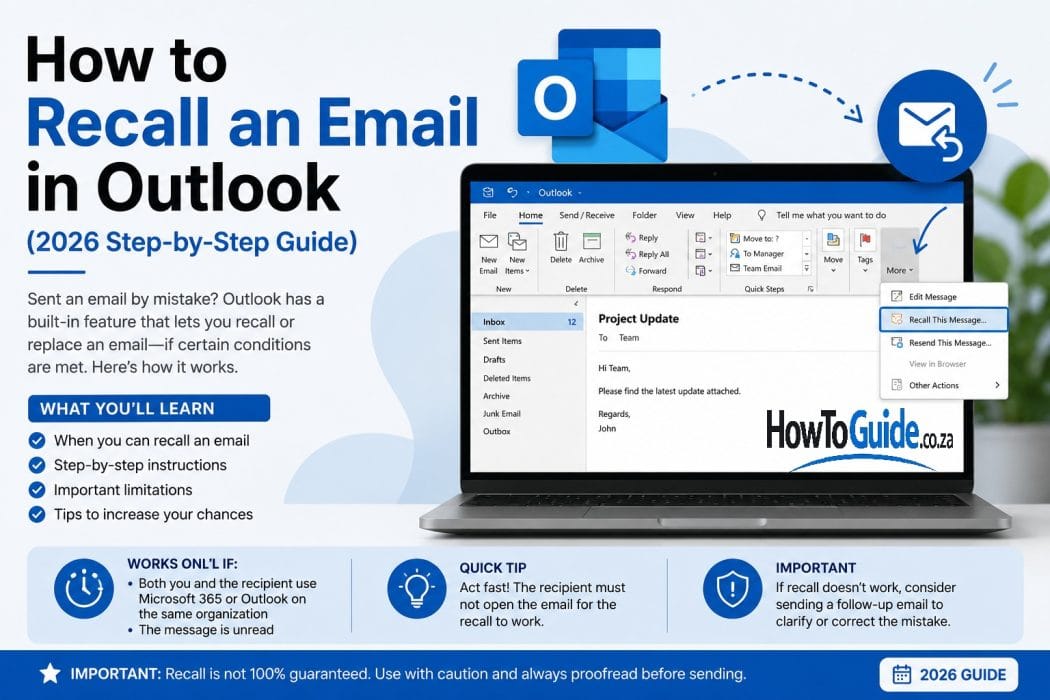
TL;DR – Quick Answer
Need to recall an email in Outlook quickly?
- Open Sent Items.
- Double-click the email to open it in a new window.
- Select the Message tab.
- Click Actions > Recall This Message.
- Choose either:
- Delete unread copies of this message, or
- Delete unread copies and replace with a new message.
- Tick Tell me if recall succeeds or fails for each recipient.
- Click OK.
Important: Email recall only works if both you and the recipient are using Microsoft Exchange or Microsoft 365 within the same organisation. It will not work for Gmail, Yahoo, iCloud, Outlook.com, or other external email addresses.
1. Introduction
We’ve all experienced that sinking feeling after clicking Send. Maybe you attached the wrong document, spotted a spelling mistake in the recipient’s name, or accidentally sent confidential information to the wrong colleague.
If you use Microsoft Outlook, you may have heard about the Recall This Message feature. While it can sometimes save the day, it’s important to understand that Outlook email recall is not the same as Gmail’s Undo Send feature.
Gmail simply delays sending your email for a few seconds, allowing you to cancel it before it leaves your account. Outlook recall is different—it attempts to retrieve an email that has already been delivered, and whether it succeeds depends on several conditions.
This guide explains how Outlook email recall works, when it succeeds, when it fails, and what you should do if recalling your email isn’t possible.
2. Who This Guide Is For
This guide is ideal for:
- Microsoft Outlook desktop users
- Microsoft 365 business users
- Exchange Server users
- Office employees
- Students using Outlook through school
- IT administrators assisting users
- Anyone who has accidentally sent an email and wants to know whether it can be recalled
Whether you’ve made a simple typo or sent the wrong attachment, this guide will help you understand your options.
3. Requirements
Before attempting to recall an email, make sure the following conditions are met:
You’ll need:
- Microsoft Outlook Desktop (Classic or New Outlook)
- Access to your Sent Items folder
- The original email still available
- Both sender and recipient using Microsoft Exchange or Microsoft 365 within the same organisation
- The recipient has not yet opened the email
- The email remains in the recipient’s Inbox
If these requirements are not met, the recall will most likely fail.
4. Step-by-Step Guide
Method 1: Recall an Email in Classic Outlook (Windows)
Step 1: Open Sent Items
Open Outlook and select Sent Items from the left navigation pane.
Step 2: Open the Email
Double-click the email to open it in a separate window.
Simply previewing the email will not display the recall option.
Step 3: Open Recall
Select:
Message → Actions → Recall This Message
Step 4: Choose an Option
You’ll see two choices:
- Delete unread copies of this message
- Delete unread copies and replace with a new message
Choose the option that best suits your situation.
Step 5: Request a Status Report
Tick:
Tell me if recall succeeds or fails for each recipient
This lets Outlook notify you whether the recall worked.
Step 6: Finish
Click OK.
If you selected Replace, Outlook opens a new email where you can send the corrected version.
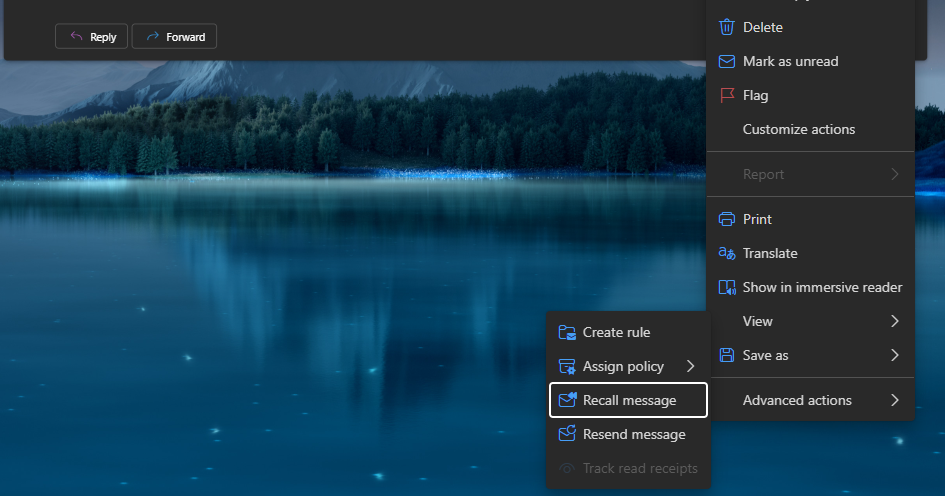
Method 2: New Outlook for Windows
- Open Sent Items.
- Double-click the email.
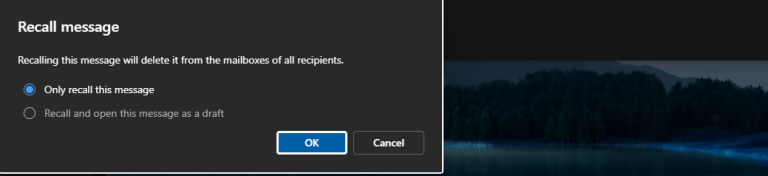
- Click Recall Message (or select it from the More (…) menu).
- Confirm the recall.
- Wait for Outlook’s status notification.
Method 3: Outlook on the Web
For Outlook.com, Hotmail, and Live.com, message recall isn’t available.
Business Microsoft 365 accounts may offer a recall option depending on your organisation’s settings.
Method 4: Outlook Mobile
The Outlook mobile app for Android and iPhone does not support message recall.
You’ll need to use Outlook on your desktop computer.
5. My Experience or Practical Insights
One of the biggest misconceptions about Outlook is that recalling an email works like an “Undo” button. In reality, it’s more of a request than a command.
In many workplaces, people discover the feature only after making a mistake, only to find that it doesn’t work because the recipient has already opened the email or because the email was sent outside the organisation.
The most effective approach is prevention. Taking an extra 30 seconds to review your recipients, subject line, attachments, and message before clicking Send is far more reliable than relying on email recall.
If you frequently send important emails, consider enabling Outlook’s Undo Send delay or creating a rule that delays outgoing emails by one or two minutes. Those few extra seconds can prevent many common mistakes.
6. Common Mistakes to Avoid
Avoid these common errors:
- Trying to recall emails sent to Gmail, Yahoo, Outlook.com or other external addresses.
- Waiting too long before attempting the recall.
- Forgetting to open the email in its own window.
- Assuming recall always works.
- Forgetting to request the recall status report.
- Relying on recall for confidential information.
- Confusing Undo Send with Recall.
- Sending another incorrect replacement email.
7. Troubleshooting
The Recall option doesn’t appear.
Make sure you’ve opened the email in a separate window by double-clicking it.
Recall failed.
The recipient may have:
- Already opened the email.
- Moved it from the Inbox.
- Been using a different email system.
- Received it outside your organisation.
I sent the email to Gmail.
Unfortunately, Outlook cannot recall emails sent to Gmail or any external email service.
I don’t know if it worked.
Check your Inbox for Outlook’s recall status report.
I sent sensitive information.
Contact your IT department immediately and follow your organisation’s security procedures rather than relying on recall.
8. Helpful Tips and Best Practices
- Always proofread before clicking Send.
- Double-check your attachments.
- Verify recipients carefully.
- Enable Undo Send in Outlook on the Web.
- Create a delay rule for outgoing messages.
- Use recall immediately after discovering a mistake.
- Don’t rely on recall as your only safeguard.
- Check the recall status report.
- Keep confidential information secure.
- If recall fails, send a professional correction email promptly.
9. Frequently Asked Questions
1. Can I recall an email sent outside my company?
No. Outlook recall only works within the same Microsoft Exchange or Microsoft 365 organisation.
2. Can I recall an email sent to Gmail?
No.
Gmail, Yahoo, iCloud and other external email services do not support Outlook’s recall feature.
3. What happens if the recipient has already opened the email?
The recall will almost certainly fail because Outlook can only remove unread messages.
4. Can I recall an email using my phone?
No.
The Outlook mobile app doesn’t support message recall.
5. How do I know if the recall worked?
If you selected the status option, Outlook will send you a confirmation indicating whether the recall succeeded or failed.
6. Can I replace the email with a corrected version?
Yes.
Choose Delete unread copies and replace with a new message during the recall process.
7. Is Outlook recall reliable?
It works only under specific conditions, making it less reliable than many users expect.
8. Is there a better alternative?
Yes.
Enabling Undo Send or delaying outgoing emails provides a much higher chance of preventing mistakes before messages leave your mailbox.
9. Can Outlook recall emails from Outlook.com accounts?
No.
Personal Outlook.com, Hotmail and Live accounts do not support message recall.
10. What should I do if recall fails?
Send a polite follow-up email explaining the mistake and providing the correct information. In many cases, a prompt and professional correction is the best solution.
10. Official Resources and References
For the latest information and support, consult:
- Microsoft Outlook Help Centre
- Microsoft 365 Support
- Microsoft Learn
- Your organisation’s IT Help Desk
- Your Microsoft Exchange administrator
These sources provide official guidance on Outlook features, email recall, and Microsoft 365 administration.
11. Conclusion
Outlook’s Recall This Message feature can be useful, but it isn’t guaranteed to work. It only succeeds under specific conditions, such as when both sender and recipient use Microsoft Exchange or Microsoft 365 within the same organisation and the recipient hasn’t yet opened the message.
For the best results, act quickly after discovering your mistake. Even better, reduce the need for recalls by reviewing your emails carefully before sending them, enabling Undo Send, or setting up a delay rule for outgoing messages.
If your recall doesn’t succeed, don’t panic. A clear, polite follow-up email is often the most effective way to correct an error and maintain professional communication.
12. Disclaimer
This guide is provided for informational purposes only and is based on Microsoft’s Outlook features available at the time of writing. Features and menu options may vary depending on your Outlook version, Microsoft 365 updates, and your organisation’s email configuration. Always refer to your organisation’s IT policies and Microsoft’s official documentation for the most up-to-date guidance.

.
About Pheto M
Pheto M is the founder and guide writer of HowToGuide.co.za, a practical information website created to help people find clear, useful and easy-to-understand guidance on everyday topics.
Pheto started HowToGuide.co.za after noticing a common problem: people often need help with important questions, applications, services and everyday decisions, but the information available online can be confusing, difficult to understand or scattered across different sources.
Pheto has experience and knowledge across several areas, including Business, Information Technology (IT), Education and Relationships. These areas have given her a practical understanding of different challenges people face in their personal, professional and everyday lives.
Today, she dedicates her time to researching, writing and updating practical guides designed to help readers understand information and take the right steps with greater confidence.
Her approach is simple: make complex information simple, confusing processes clear, and difficult situations easier to manage.
Through HowToGuide.co.za, Pheto aims to provide practical, accessible and helpful information that readers can use in their everyday lives.
Pheto values feedback from readers and is committed to continually improving the content on HowToGuide.co.za. If you have a question, suggestion, or would like to get in touch, you can email her at admin@howtoguide.co.za. She personally reviews reader feedback and aims to respond within 48 hours.
How to Check If Someone Is Trying to Hack Your WhatsApp: 2026
August 21, 2026
Reading Time: 10 minutesLearn how to check if someone is trying to hack your WhatsApp. Discover key warning signs, like unexpected verification codes and unfamiliar linked devices, and follow simple steps to secure your account.
How to Use SARS WhatsApp Tax Services in 2026: Step-by-Step Guide
August 8, 2026
Reading Time: 12 minutesLearn how to access SARS tax services on WhatsApp in 2026. Step-by-step guide to check tax numbers, refund status, auto-assessments, and submit documents.
How to Reverse an FNB eWallet Payment on the FNB App (2026)
August 4, 2026
Reading Time: 6 minutesLearn how to reverse an FNB eWallet payment step-by-step using the FNB App, check transaction status, and act fast before funds are redeemed.
How to Cancel a FOX One Subscription on Roku or Youtube (2026): Easy Step-by-Step Guide.
July 26, 2026
Reading Time: 5 minutesNeed to cancel your FOX One subscription? Whether you signed up through Roku, YouTube, or directly, learn the exact step-by-step process to cancel your account, avoid unwanted auto-renewals, and manage your billing hassle-free.
How to Cancel Vodacom Subscriptions (Caller Tunes, Games & Contracts – 2026 Guide)
July 20, 2026
Reading Time: 5 minutesCharged for unknown airtime services? Learn how to cancel subscriptions on Vodacom step-by-step—including WASP content, caller tunes, recurring data bundles, and full contracts
How to Recall an Email in Outlook (2026 Step-by-Step Guide)
July 20, 2026
Reading Time: 6 minutesNeed to unsend an email in Outlook? Here is a step-by-step guide on how to recall an email, when the feature actually works, and what to do if it fails.